
This icon list section is only visible in Designer and Editor View. On live page you will not see this icon list.

icon-preview.svg
icon-sub-object-green.svg
icon-spark.svg
icon-spark-infinite.svg
icon-alpha-zero.svg
icon-alpha.svg
icon-replace.svg
icon-eye-hidden.svg
icon-eye.svg
icon-ai-sparkles.svg
Icon_Apple_VideoPlus.svg
Icon_Apple_PersonViewfinder.svg
icon-app-settings.svg
jig-info-settings.svg
icon-object-property-panel.svg
icon-snap-vertex.svg
icon-object-hierarchy.svg
icon-snap-face.svg
icon-share-jig.svg
icon-shareplay.svg
icon-person.svg
icon-person-slash.svg
icon-join-presentation.svg
icon-gallery.svg
icon-ellipsis.svg
icon-close.svg
icon-clear-annotation.svg
icon-audio-avp.svg
icon-attachments.svg
icon-arrow-forward.svg
icon-arrow-backward.svg
icon-annotation.svg
icon-swatch-texture.svg
icon-swatch-texture-delete.svg
icon-reset.svg
icon-library.svg
icon-check.svg
icon-team-black.svg
icon-explode.svg
icon-visible.svg
icon-view.svg
icon-video.svg
icon-unlocked.svg
icon-unlock.svg
icon-undo.svg
icon-target.svg
icon-sub-object-mode.svg
icon-stop.svg
icon-start-recording.svg
icon-select-all.svg
icon-scale.svg
icon-save.svg
icon-rotate.svg
icon-rotate-blue.svg
icon-remove.svg
icon-redo.svg
icon-record.svg
Icon previous.svg
icon-previous-step.svg
icon-play.svg
icon-pause.svg
icon-paste.svg
icon-ok.svg
icon-offline.svg
icon-object-mode.svg
Icon-next.svg
icon-next-step.svg
icon-multiselect.svg
icon-move.svg
icon-more.svg
icon-more-settings.svg
icon-mic-on.svg
icon-mic-off.svg
icon-locked.svg
icon-lock.svg
icon-lasso-select.svg
icon-lasso-deselect.svg
icon-label.svg
icon-knowledge.svg
icon-invisible.svg
icon-information.svg
icon-home.svg
icon-flatmode.png
icon-duplicate.svg
icon-dropper.svg
icon-delete.svg
icon-delete-audio.svg
icon-copy.svg
icon-colour.svg
icon-camera.png
icon-back.svg
icon-audio.svg
icon-ar.svg
icon-all.svg
icon-all-previous.svg
icon-all-after.svg
icon-add-user.svg
icon-add-steps.svg
icon-add-object.svg
icon-3d-object-blue.svg
Rotate

Rotate

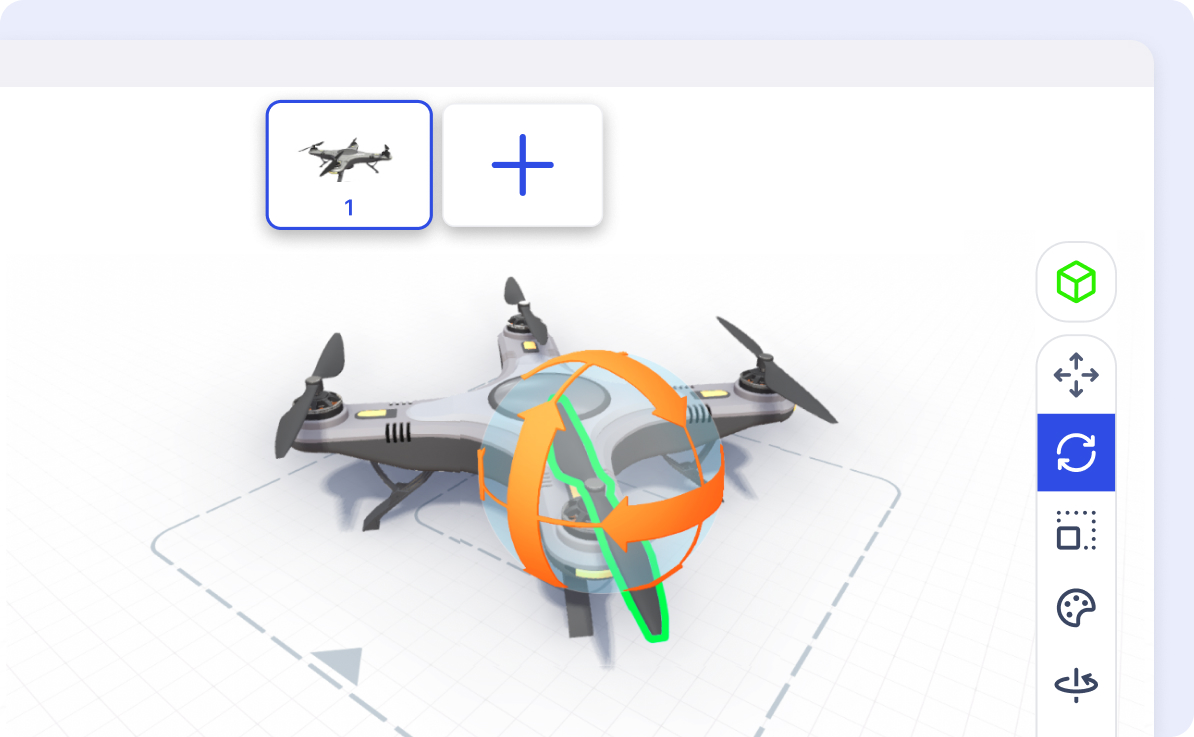
Rotation can be a great way of adding movement to your Jig. Rotating objects like propellers across multiple steps can give viewers an understanding of how different components of a model work.

Rotating Objects

The Rotate Tool {icon-rotate.svg} is located on the toolbar and can be used to rotate your objects.

To rotate an object you need to select the object, tap Rotate {icon-rotate.svg}  on the toolbar. Press and hold down on one of the arrows on the rotation tool to rotate your objects.
Desktop Hotkeys

To select the rotate tool press [key E]

To 'Snap' an objects rotation by degrees hold [key Shift] while you tap and drag on the rotate tools arrow.

Previous featureNext feature